Datamoshing in Live Mosher
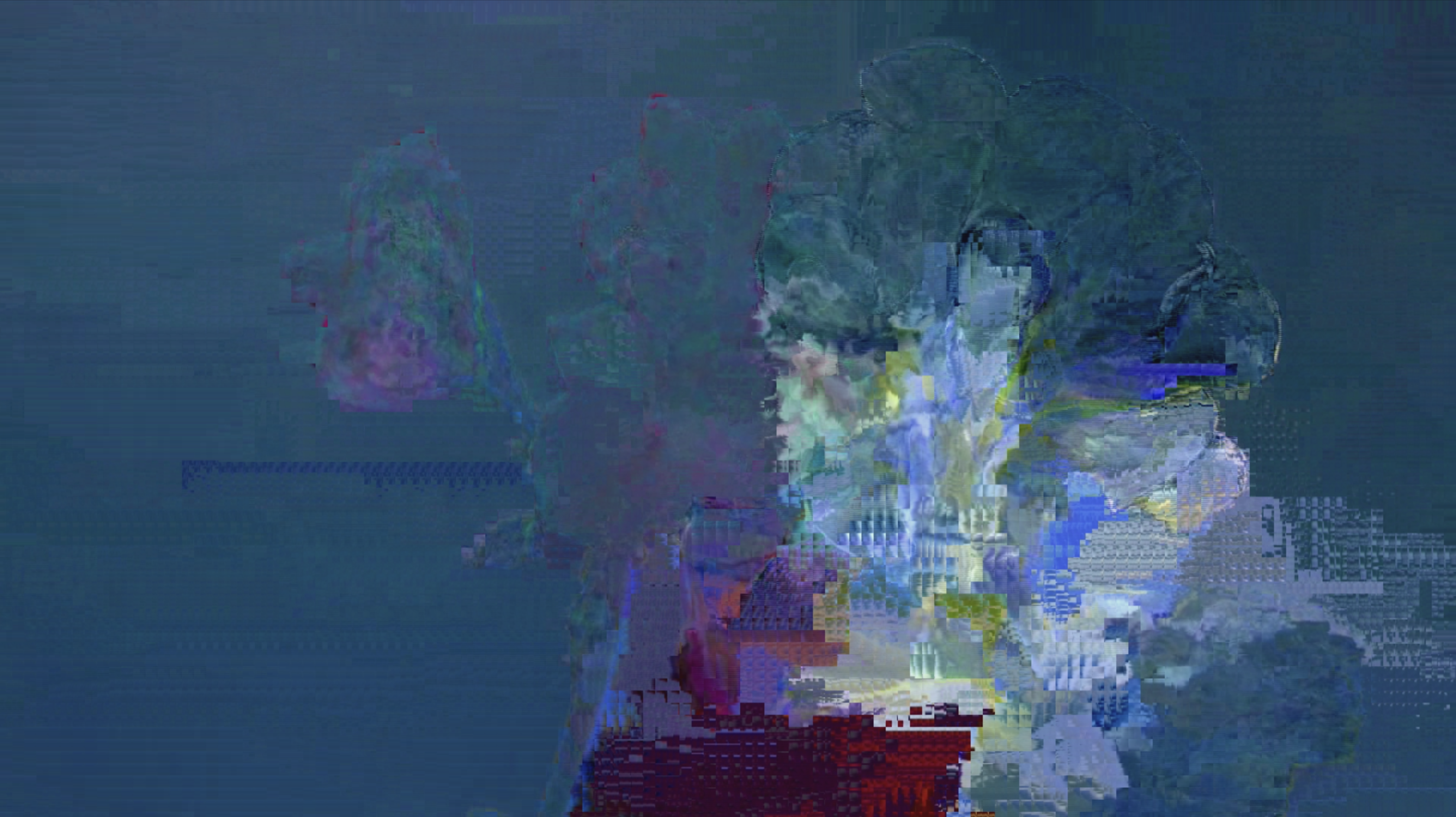
Example of a Datamosh done in Live Mosher
What is Datamoshing?
Datamoshing is a glitch video technique that exploits how video compression works. By removing or manipulating the structural frames that codecs depend on, you force the decoder to apply motion from one shot onto the pixels of another — producing smeared, melting, blooming transitions that have become one of the most recognizable effects in glitch art.
The technique sits at the intersection of technical knowledge and creative experimentation. Unlike filter-based effects that simulate corruption, datamoshing creates actual broken video files, which is what gives it that raw, unpredictable quality no plugin can fully replicate.
Understanding Video Compression + Codecs
Video codecs (ie. H.264, H.265, MPEG-4, etc) reduce video file sizes, making them manageable for storing, playback, and sharing. Without codecs, raw uncompressed video is huge!
For example:
- 1 minute of 1080p uncompressed footage at 30 fps = 10 GB!!!! ❌
- The same footage in a compressed codec such as H.264 = 60-70 MB ✅
When you open a video file in a video player, that player has a decoder that allows the video to be played back. If you've ever opened a video file in a player that does not support the video codec type, and you got an error, now you know why!
Codecs organize footage in 3 frame types:
- I-frames (Intra frames) - self-contained images, like photographs
- P-frames (Predicted frames) - stores differences (motion vectors) from the previous frame
- B-frames (Bidirectional frames) - references previous & future frames
What happens when you datamosh?
Or in other words, what happens when you remove I-Frames from a video?
The decoder can't find a clean reference so it grabs whatever pixel data is still in the buffer from the previous shot. This results in melting, smearing, and other compression artifacts to appear in your video!
Core Datamoshing Techniques
- I-Frame Removal (The "Melt") - two shots flowing into each other through a smeared, painterly transition
- P-Frame Duplication (The "Bloom") - creates hypnotic, pulsating motion trails by repeating a single frame’s motion data over and over.
- Chain melts - Remove multiple I-frames across several cuts, letting the mosh cascade through three or more shots
- Selective bloom bursts - Insert short bloom sequences (5–10 duplicated P-frames) as rhythmic punctuation within otherwise clean footage
- Reverse moshing - Reverse the clip before moshing, then reverse the output, creating motion trails that flow “backward”
- Multi-pass corruption - Mosh a clip, re-encode it, then mosh it again for deeper, more layered degradation
- Faking it - After Effects, Premiere Pro, DaVinci Resolve, TouchDesigner or MaxMSP - not "real" datamoshing, but simulate the effects
Tips for good datamoshing: Start with good footage!**
Pre-existing compression artifacts compete with your intentional glitching, so start with clean footage!
| ✅ Footage that moshes well | ❌ Footage the moshes poorly |
|---|---|
| High-contrast subjects | Static shots |
| Fast, directional motion | Already heavily compressed video |
| Scene transitions with contrasting content | Very dark or very bright footage |
| Clean, sharp originals | Footage with uniform color |
Live Mosher
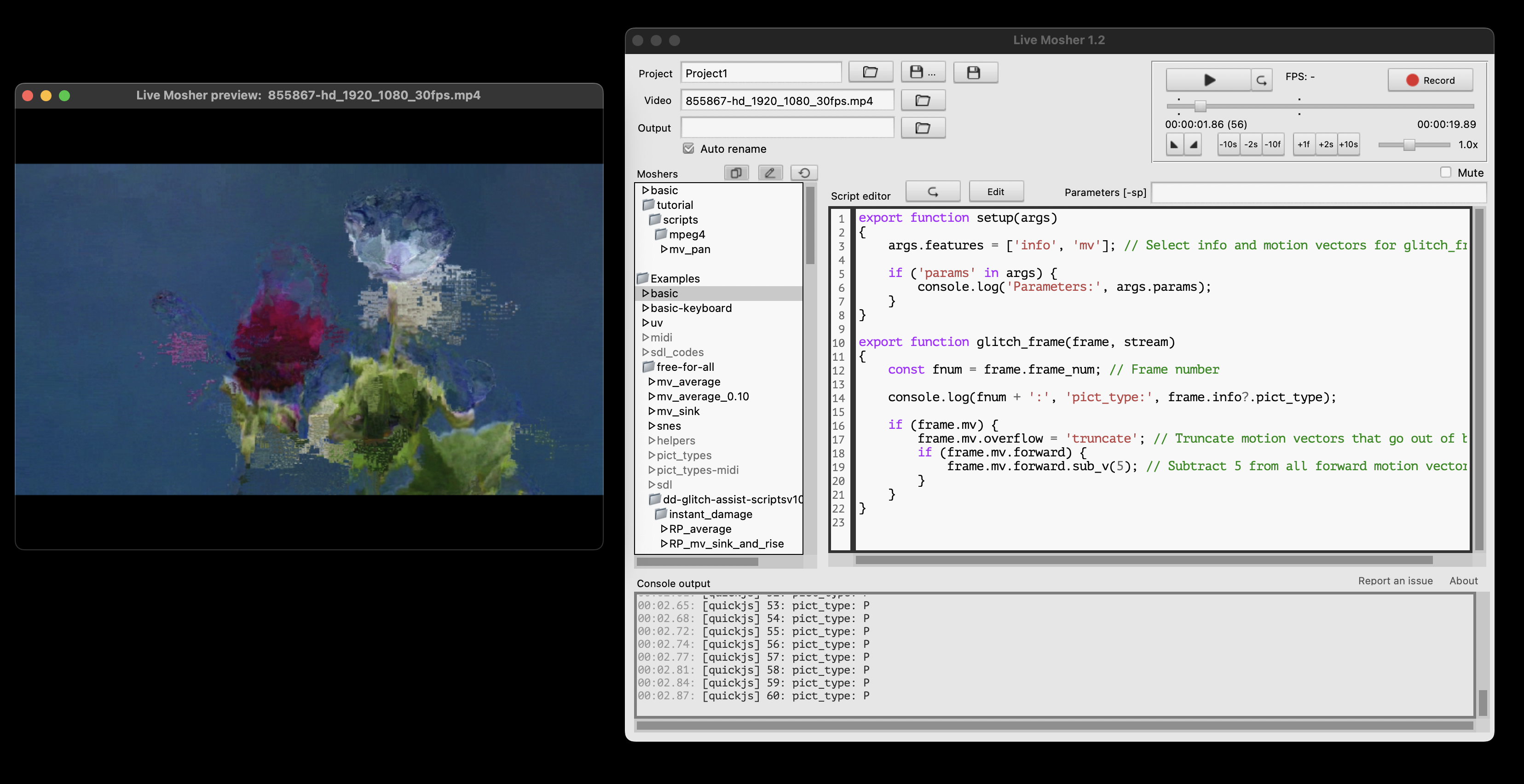
Live Mosher is a front-end software (aka a software with a user interface) built by pawelzwronek for FFglitch (a command-line tool built on FFmpeg). It comes with datamoshing recipes already included and allows you to experiment with and tweak existing scripts without the cryptic trouble of guessing where I-Frames are in Avidemux or when using command-line tools. Pretty cool!
Download Live Mosher Here
Live Mosher Interface
Datamoshing Instructions
Step 1: Open Live Mosher + load a video into the software
- Video:
Open File - A video preview will pop-up indicating your video is loaded
Step 2: Play with pre-built datamoshes!
- Scroll down the navigation sidebar to see all the different example effects.
- Some good ones to check out:
- Basic
- antiGravity
- Random Damage
- Pixel Sort
Step 3: Export your video
- Specify and output location

- Record

Et voila! You can now datamosh! Don't worry about understanding the code unless you want to 🫨
Repeat with other effects!
- Try out other effects
- Look at the datamosh code, see where there are comments that indicate you can "experiment" with the numbers. See how this changes the results.
Resources
- Datamoshing via Glitchology.com
- Datamoshing.com
- Datamosh in TouchDesigner (Simulated)
- Glitches, pixel sorting and datamoshing
- Free TouchDesigner moshing tool